


Page 63 - DP-2-2
P. 63
Design+                                                               Da Vinci AI Tutor in art history learning


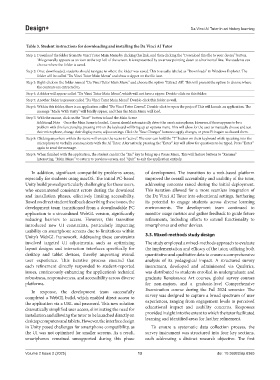
            Table 3. Student instructions for downloading and installing the Da Vinci AI Tutor
            Step 1:  Download the folder from Da Vinci Tutor Main Menu by clicking this link, and then clicking the “Download this file to your device” button.
                 This generally appears as an icon at the top-left of the screen. It is represented by an arrow pointing down at a horizontal line. The students can
                 choose where the folder is saved.
            Step 2:  Once downloaded, students should navigate to where the folder was saved. This is usually labeled as “Downloads” in Windows Explorer. The
                 folder will be called “Da Vinci Tutor Main Menu” and show a zipper on the file icon.
            Step 3:  Right-click on the folder named “Da Vinci Tutor Main Menu” and choose the option “Extract All”. This will present the option to choose where
                 the contents are extracted to.
            Step 4: A folder will appear called “Da Vinci Tutor Main Menu”, which will not have a zipper. Double-click on this folder.
            Step 5: Another folder is present called “Da Vinci Tutor Main Menu”. Double-click this folder as well.
            Step 6:  Within this folder, there is an application called “Da Vinci Tutor Convai”. Double-click to open the project! This will launch an application. The
                 message “Made With Unity” will briefly appear, and then the Main Menu will load.
            Step 7:  With the mouse, click on the “Start” button to load the Main Scene
                          Additional Note – Once the Main Scene is loaded, Convai should automatically detect the user’s microphone. However, if there appears to be a
                 problem with this functionality, pressing F10 on the keyboard will bring up an options menu. This will allow for the user to manually choose and test
                 their microphone, change their display name, adjust settings. Click the “Save Changes” button to apply changes, or press F10 again to discard them.
            Step 8:  Clicking anywhere within the scene will ensure the scene is “active”. The user can hold the “T” button on their keyboard while speaking into the
                 microphone to verbally communicate with the AI Tutor. Alternatively, pressing the “Enter” key will allow for questions to be typed. Press “Enter”
                 again to send the message.
            Step 9:  When finished with the application, the student can hit the “Esc” key to bring up a Pause Menu. This will feature buttons to “Resume”
                 interacting, “Main Menu” to return to previous screen, and “Quit” to exit the application entirely.

              In addition, significant compatibility problems arose,   of development. The transition to a web-based platform
            especially for students using macOS. The initial PC-based   improved the overall accessibility and usability of the tutor,
            Unity build proved particularly challenging for these users,   addressing concerns raised during the initial deployment.
            who encountered consistent errors during the download   This iteration allowed for a more seamless integration of
            and installation phases, effectively limiting accessibility.   the Da Vinci AI Tutor into educational settings, furthering
            Based on direct student feedback describing these issues, the   its potential to engage students across diverse learning
            development team transitioned from a downloadable PC   environments. The development team continued to
            application to a streamlined WebGL version, significantly   monitor usage metrics and gather feedback to guide future
            reducing barriers to access. However, this transition   refinements, including efforts to extend functionality to
            introduced new UI constraints, particularly impacting   smartphones and other devices.
            usability on smartphone screens due to limitations within
            Unity’s WebGL framework. Addressing these constraints   3.3. Mixed-methods study design
            involved targeted UI adjustments, such as optimizing   The study employed a mixed-methods approach to evaluate
            layout designs and interaction interfaces specifically for   the implementation and efficacy of the tutor, utilizing both
            desktop and tablet devices, thereby improving overall   quantitative and qualitative data to ensure a comprehensive
            user experience. This iterative process ensured that   analysis  of  its  pedagogical  impact.  A  structured  survey
            each refinement directly responded to student-reported   instrument, developed and administered via Qualtrics,
            issues, continuously enhancing the application’s technical   was distributed to students enrolled in undergraduate and
            robustness, responsiveness, and accessibility across diverse   graduate Renaissance Art courses, global survey courses
            platforms.                                         for non-majors, and a graduate-level Comprehensive

              In response, the development team successfully   Examination course during the Fall 2024 semester. The
            completed a WebGL build, which enabled direct access to   survey was designed to capture a broad spectrum of user
            the application via a URL and password. This new solution   experiences, ranging from engagement levels to perceived
            dramatically simplified user access, eliminating the need for   educational impact and usability concerns. Responses
            installation and allowing the tutor to be launched directly on   provided insight into the extent to which the tutor facilitated
            desktop computers and tablets. However, the interface design   learning and identified areas for further refinement.
            in Unity posed challenges for smartphone compatibility, as   To ensure a systematic data collection process, the
            the UI was not optimized for smaller screens. As a result,   survey instrument was structured into four key sections,
            smartphones remained unsupported during this phase   each addressing a distinct research objective. The first


            Volume 2 Issue 2 (2025)                         13                               doi: 10.36922/dp.8365

